Edit, move or remove a wish
Every wish on My Wishlist has a quick menu, so you can change it without opening it first. You can also fix a wish's photo from the wish itself.
Open the quick menu
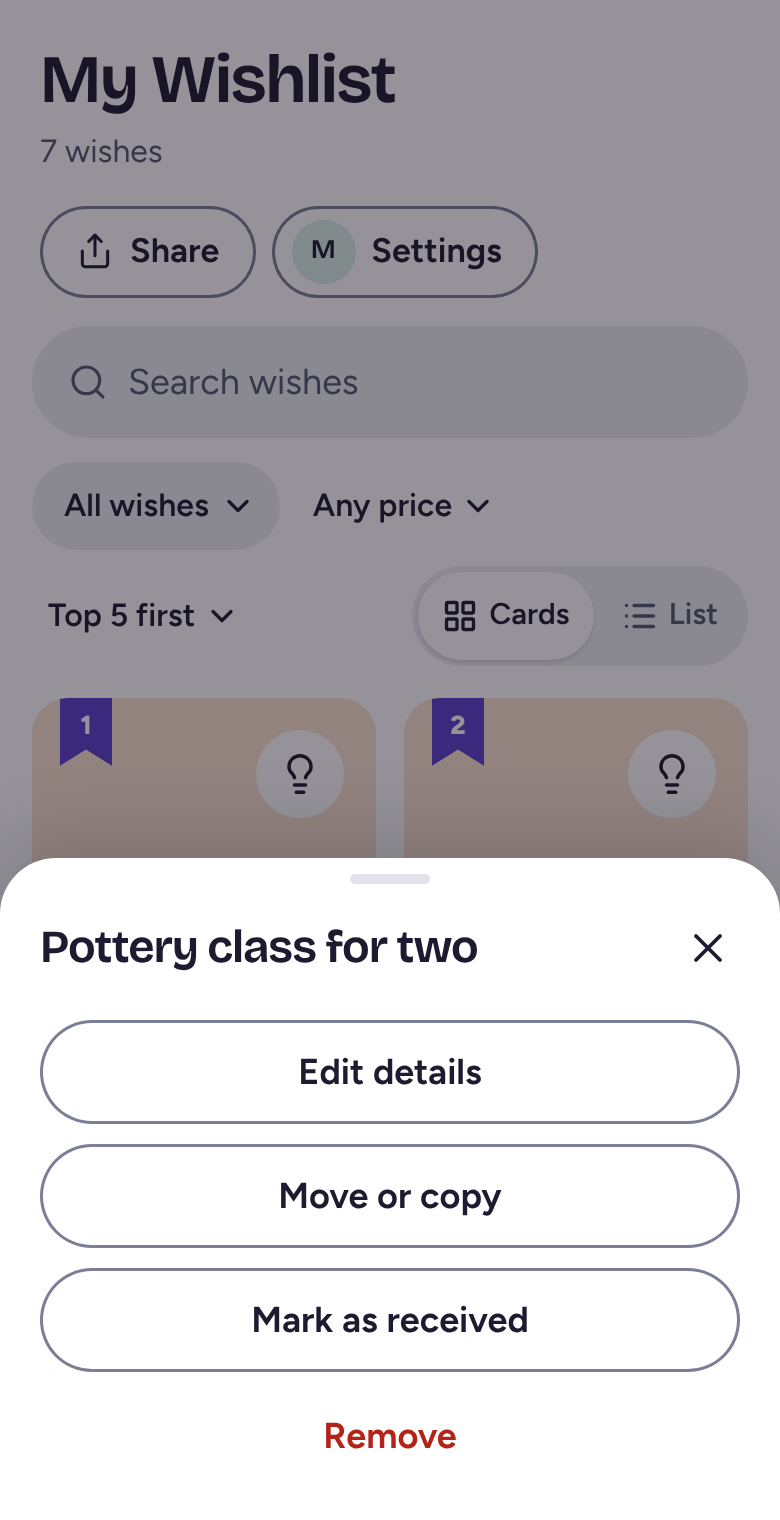
On My Wishlist, press and hold a wish on your phone, or right-click it on a computer. A menu opens with Edit details, Move or copy, Mark as received and Remove. Tapping a wish still opens it, and the same buttons are at the bottom of its page.
Edit details or move it
Tap Edit details to change the title, price, size or color, or your note for gift-givers, then tap Save.
Tap Move or copy to put the wish on another list you run, like a child's. Pick the list, then tap Move to take it off this list, or Make a copy to keep it on both. Move or copy only shows when you run more than one list.
Mark it received or remove it
Tap Mark as received once you've been given it. It moves to Received gifts, under your wishes. Tap Remove to take it off your list.
Both show a note at the bottom with Undo, and Undo brings the wish back. Moving a wish shows Undo too.
Fix a wish's photo
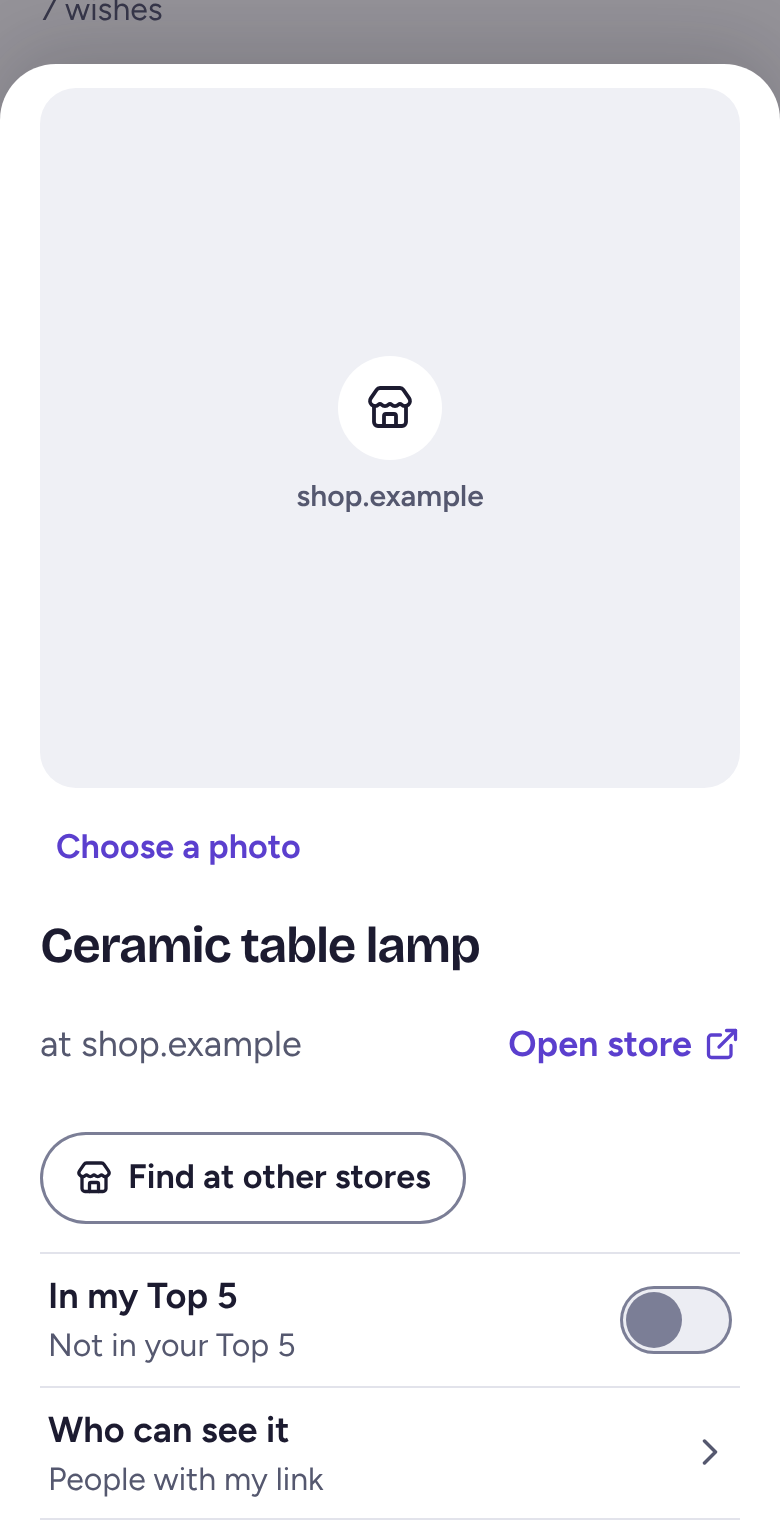
Tap the wish, then tap Choose a photo under the picture. It says Change photo when the wish already has one. Pick a photo from the store's page or from the same item at other stores, then tap Use this photo. For a picture that's already online somewhere else, paste its address under Or use a photo link.
In the iPhone app and the Android app, a wish without a photo (other than from Amazon) also has Get details from this phone, which opens the store's page on your phone and fills in the photo and price. On a computer with the Wantalot extension, it's Read it in this browser.
Related
Still stuck? Email hello@wantalot.app and a person will answer, usually within a day.
About WantalotGift ideasSecret SantaChristmas listsWhat’s newPrivacyTermsHelp