Add a wish from any store
A wish can be a link to something in any online store, or just an idea in your own words, like a pottery class or help moving.
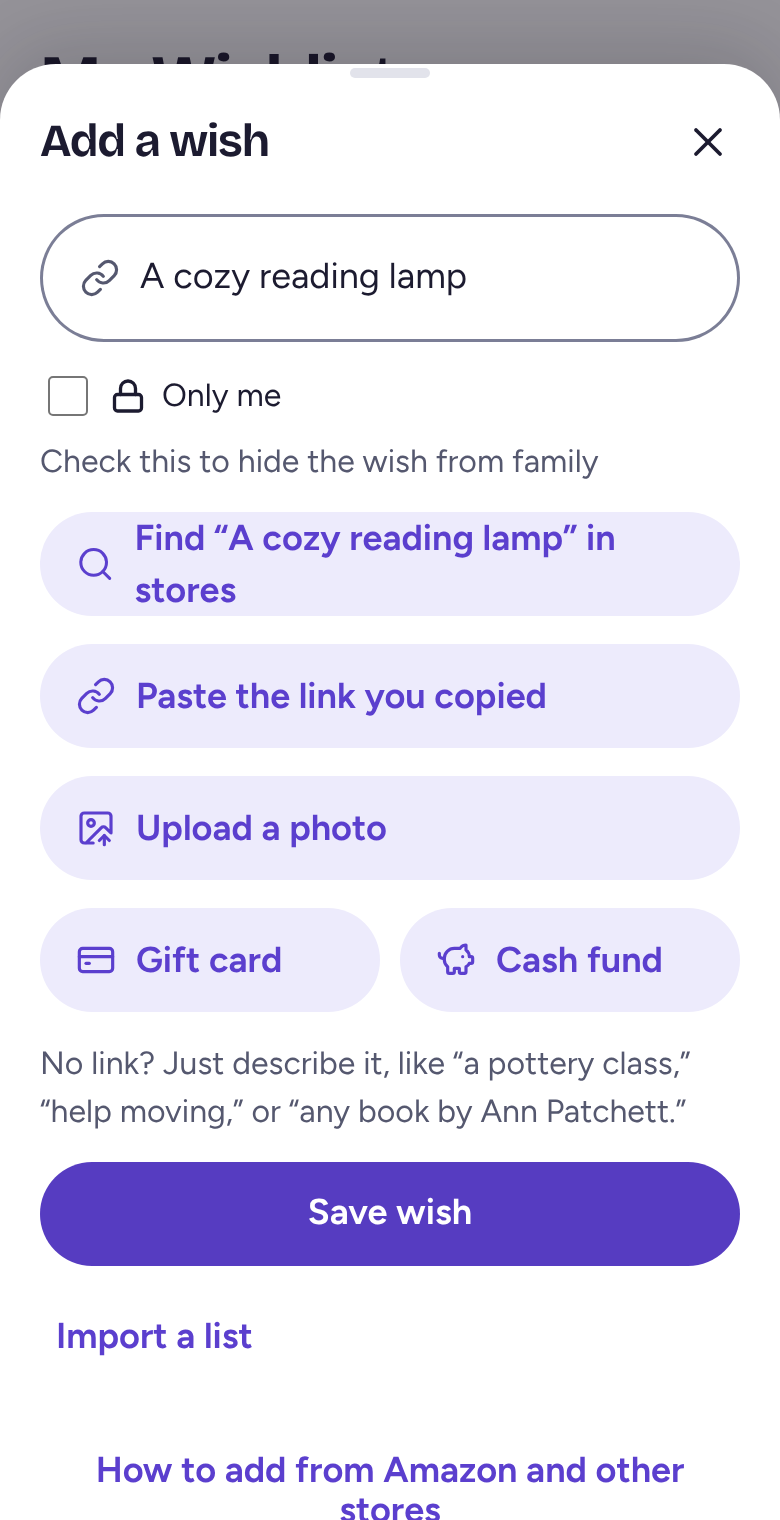
Tap Add a wish
On My Wishlist, tap Add a wish. Paste a store link, or type what you'd like. If you copied a link already, tap Paste the link you copied.
Wantalot fills in the name, photo and price from the link. Check them, then tap Save wish.
Straight from a store on iPhone
With the Wantalot app installed, open the product in Safari or the store's app, tap Share, then Wantalot. If you don't see it, scroll the row of apps to the end and tap More.
From a photo
Tap Upload a photo to add something from a picture or screenshot, like a product you saw in a shop. Wantalot looks for the item and you choose the right one.
If the photo or price is missing
Tap the wish, then tap Choose a photo under the picture. You'll see photos from the store's page and the same item at other stores. Tap one, then tap Use this photo, or paste the address of a picture that's already online under Or use a photo link.
In the iPhone app and the Android app, tap Get details from this phone on a wish without a photo (not for Amazon wishes). Your phone opens the store's page itself and fills in what it finds. On a computer with the Wantalot extension, tap Read it in this browser instead.
Related
Still stuck? Email hello@wantalot.app and a person will answer, usually within a day.
About WantalotGift ideasSecret SantaChristmas listsWhat’s newPrivacyTermsHelp